
AI Enhance 1.1 Update for SketchUp
AI Enhance 1.1 gives SketchUp users a fuller rendering workflow with pre-render setup controls, markup-based edits, gallery stacks and favorites, referral credits, and a signed manual installer.
On this page
Current download status — checked September 2, 2026
The latest signed first-party installer is AI Enhance 1.1.4. Its SketchUp Extension Warehouse review is still pending, so users can install 1.1.4 manually through SketchUp Extension Manager while the currently approved Warehouse listing remains available.
The short answer: AI Enhance 1.1 is a workflow release for SketchUp users who want more control before a render, more useful edits after a render, and a cleaner way to organize the images worth keeping.
Instead of treating AI rendering as one prompt box and one output image, this update builds more of the surrounding work into the extension. Setup controls are easier to reach, markups can guide focused edit passes, saved renders can be grouped into stacks, and existing users can install the signed RBZ manually while Extension Warehouse review continues.
Release highlights
What is new in 1.1
Workflow
Left-side controls
Capture, Enhancement Settings, Prompt Builder, and Markup are easier to reach before rendering.
Markup
Direct edit notes
Mark the current render with text, arrows, highlights, and edit notes before sending another pass.
Gallery
Stacks and favorites
Group related renders, keep versions together, save favorites, and browse by render metadata.
Referrals
Share for credits
Share AI Enhance and earn credits when a referral buys their first paid personal credit pack.
Quality
Preview / Standard / High
Quality choices and credit costs are visible before the render pass starts.
Install
Signed RBZ
Existing users can install manually through SketchUp Extension Manager while review continues.
Teams
Shared credits
Group accounts are available for studios, labs, classrooms, and teams.
Release summary
AI Enhance 1.0 vs 1.1
The simplest way to read this release is as a move from one-off image generation toward a more complete SketchUp rendering workflow. AI Enhance 1.1 keeps the fast capture-to-render loop, then adds the controls users need before, during, and after each render pass.
| Workflow area | Before 1.1 | In 1.1 |
|---|---|---|
| Setup flow | Setup felt more like a single render prompt followed by an output. | Capture, Enhancement Settings, Prompt Builder, and Markup are grouped into the left workflow rail. |
| Visual edits | Edits depended mostly on text descriptions after the first render. | Markup lets users draw, point, highlight, and add notes directly over a render before the next pass. |
| Saved work | Saved images could become harder to scan as a project generated more options. | Gallery stacks, versions, favorites, and metadata filters make render history easier to organize. |
| Repeatable prompts | Users often had to rewrite or remember prompt language for repeated styles. | Enhancement Settings and Prompt Builder make source type, look, lighting, quality, and custom chips easier to reuse. |
| Sharing and teams | Sharing AI Enhance and requesting team access were less connected to the product workflow. | Referral credits and group account links are easier to find from account-related surfaces. |
| Install and updates | Users generally waited for the next marketplace-facing extension package. | Existing users can use a signed manual installer now while live app improvements continue to ship without unnecessary native extension churn. |
Setup flow
Before 1.1
Setup felt more like a single render prompt followed by an output.
In 1.1
Capture, Enhancement Settings, Prompt Builder, and Markup are grouped into the left workflow rail.
Visual edits
Before 1.1
Edits depended mostly on text descriptions after the first render.
In 1.1
Markup lets users draw, point, highlight, and add notes directly over a render before the next pass.
Saved work
Before 1.1
Saved images could become harder to scan as a project generated more options.
In 1.1
Gallery stacks, versions, favorites, and metadata filters make render history easier to organize.
Repeatable prompts
Before 1.1
Users often had to rewrite or remember prompt language for repeated styles.
In 1.1
Enhancement Settings and Prompt Builder make source type, look, lighting, quality, and custom chips easier to reuse.
Sharing and teams
Before 1.1
Sharing AI Enhance and requesting team access were less connected to the product workflow.
In 1.1
Referral credits and group account links are easier to find from account-related surfaces.
Install and updates
Before 1.1
Users generally waited for the next marketplace-facing extension package.
In 1.1
Existing users can use a signed manual installer now while live app improvements continue to ship without unnecessary native extension churn.
Who should install AI Enhance 1.1 now
Current AI Enhance users should install 1.1 if they want the updated workflow rail, markup-based edits, the improved Gallery, referral credits, and clearer quality controls before the Extension Warehouse review process finishes.
The update is also useful for users who are evaluating AI rendering inside SketchUp for real project work. The release is less about adding another output button and more about reducing the back-and-forth that happens after the first render: revise a detail, compare options, keep the best versions, and share the workflow with a team when credits need to be managed together.
Feature 01
Updated workflow controls
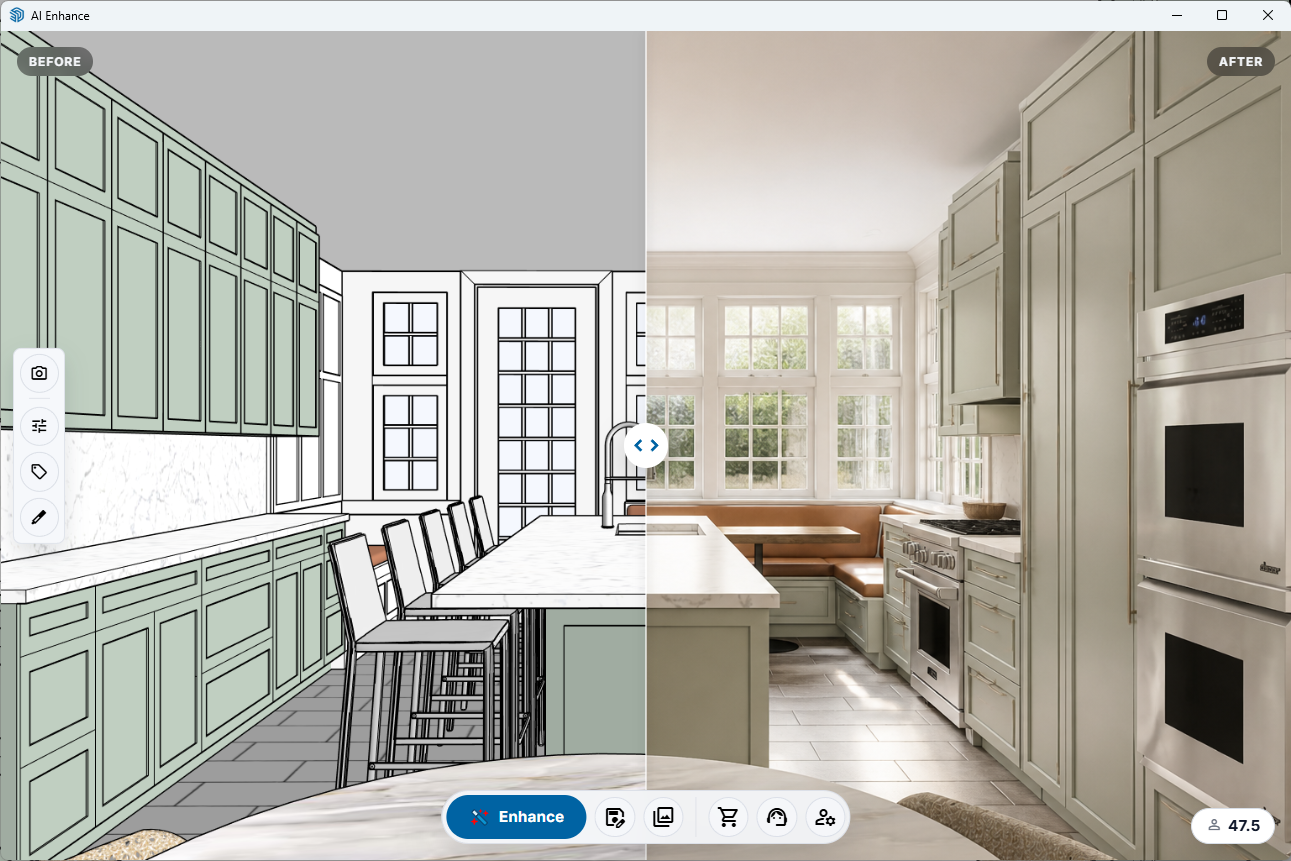
AI Enhance 1.1 puts the most important pre-render controls in a simple left-side workflow rail. Capture, Enhancement Settings, Prompt Builder, and Markup are available without pulling users away from the image they are working on.
The before/after comparison remains the center of the experience, while the setup controls stay close enough for fast iteration.
- Capture the SketchUp viewport and compare the source image against the AI result.
- Open Enhancement Settings for source type, look, lighting, and quality choices.
- Switch into Prompt Builder or Markup without leaving the render surface.
Feature 02
Markup-based edits
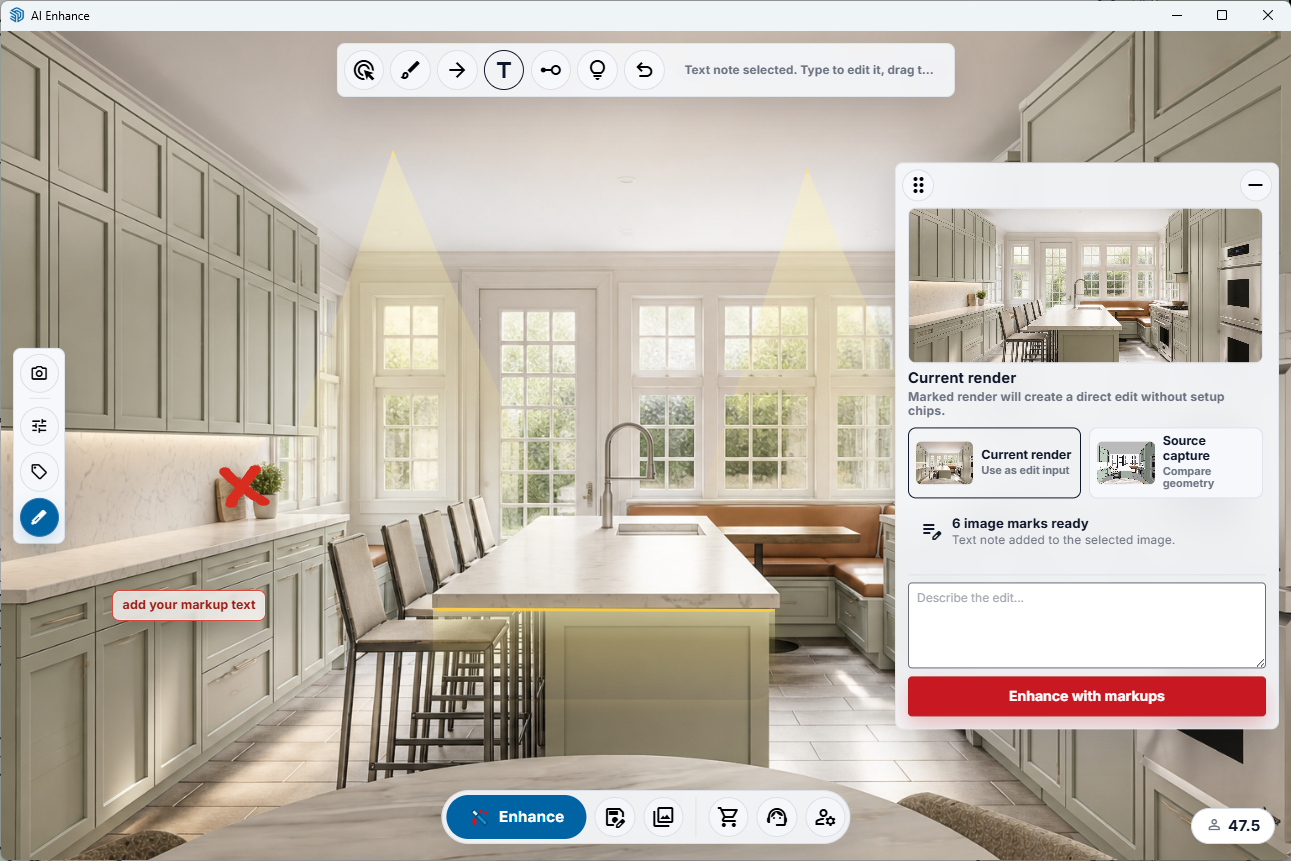
Markup is for the moment when the image is close, but the next instruction needs to be visual. Users can draw over the current render, add a text note, point at an area, and send a direct edit request with the marked image as context.
That makes AI Enhance more useful for design review because the instruction can live on the image instead of being hidden inside a long prompt.
- Draw attention to exact areas with marks, arrows, highlights, and notes.
- Use the current render or source capture as the edit context.
- Send a focused "Enhance with markups" pass instead of rebuilding the setup from scratch.
Feature 03
Gallery stacks, versions, and favorites
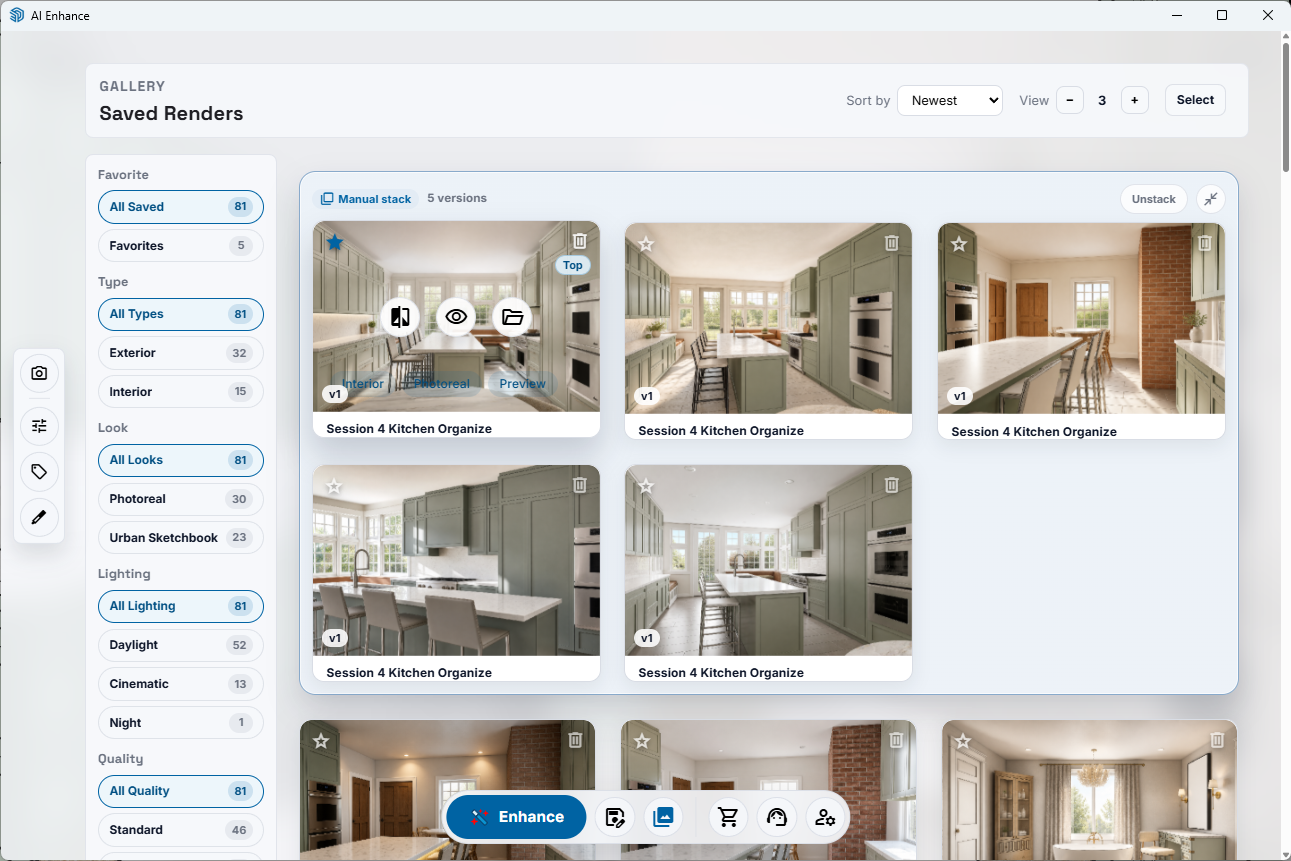
The Gallery is more than a folder view in 1.1. Related images can be grouped into stacks, versions can stay together, and favorites make it easier to return to the images that are worth sharing or revising.
Filters for favorite state, type, look, lighting, and quality help the saved render library stay useful as the number of images grows.
- Stack related renders from the same session or design direction.
- Save favorite images for review, sharing, or future edits.
- Filter by render metadata such as type, look, lighting, and quality.
Feature 04
Referral credits from Account & Billing
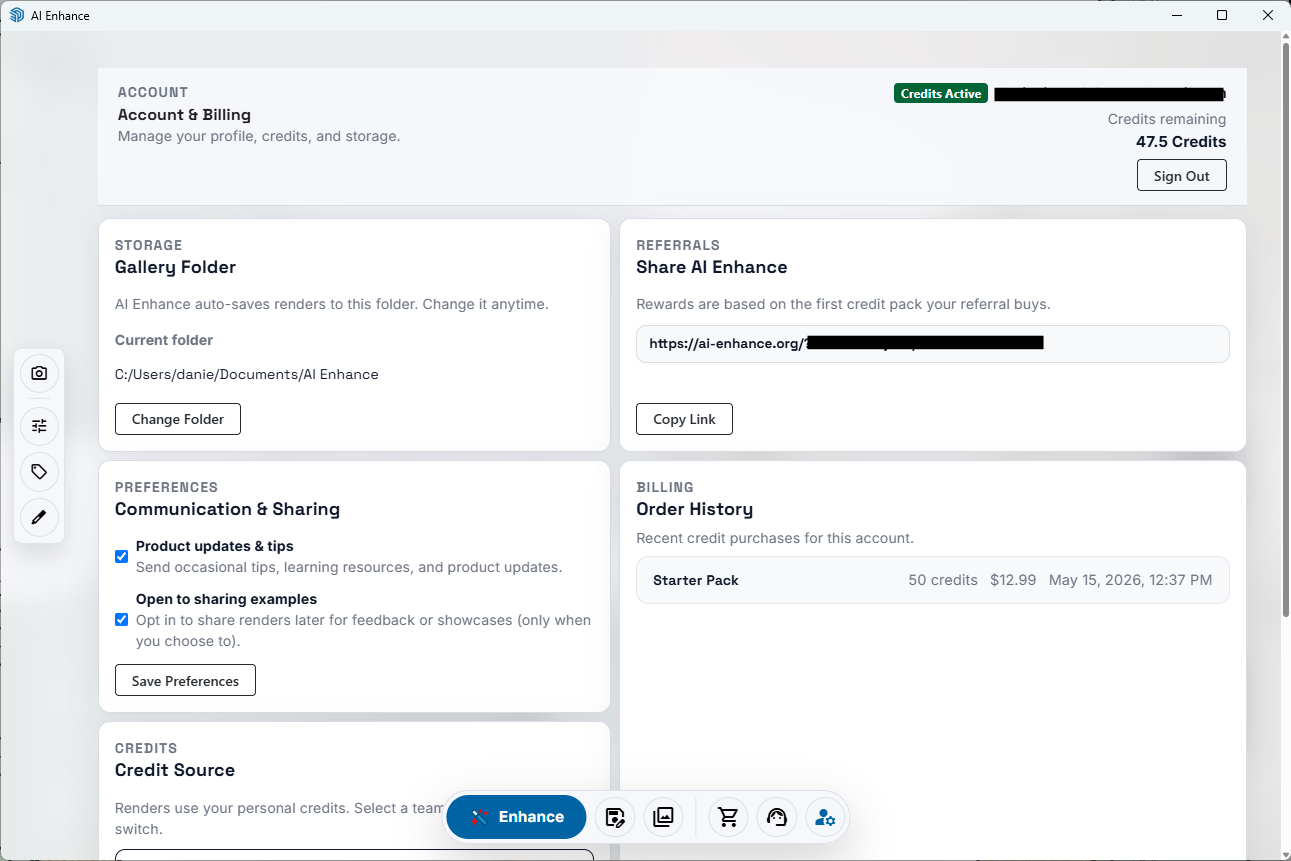
AI Enhance 1.1 also brings referral sharing into the account workflow. Users can copy a share link and earn credits when someone they refer buys their first paid personal credit pack.
This sits beside storage, communication preferences, billing history, credit source, and group account controls so account-related work is easier to find.
- Copy a personal AI Enhance share link from Account & Billing.
- Referral rewards are based on the first paid personal credit pack a referral buys.
- Organization purchases, shared-pool top-ups, and auto-refills do not earn personal referral credits.
Feature 05
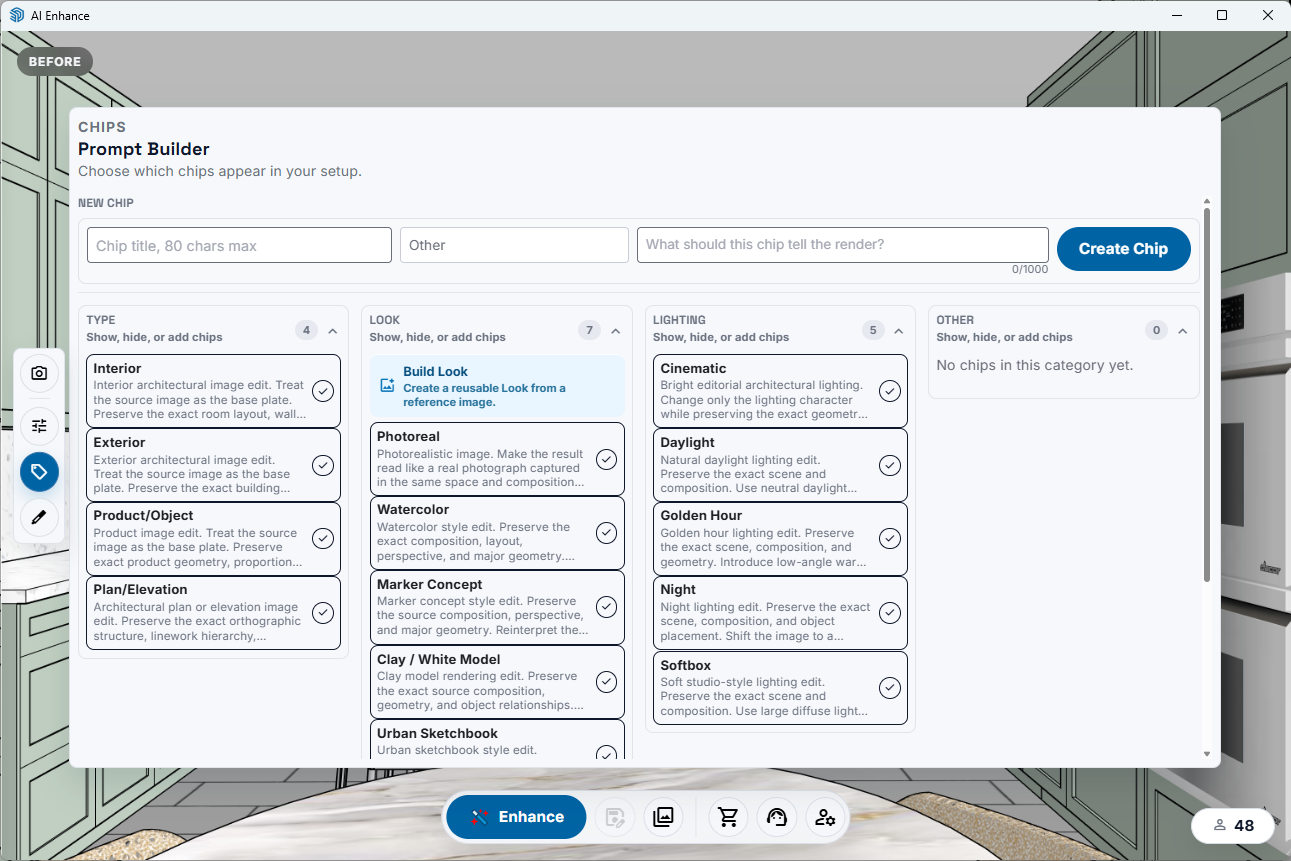
Enhancement Settings and Prompt Builder
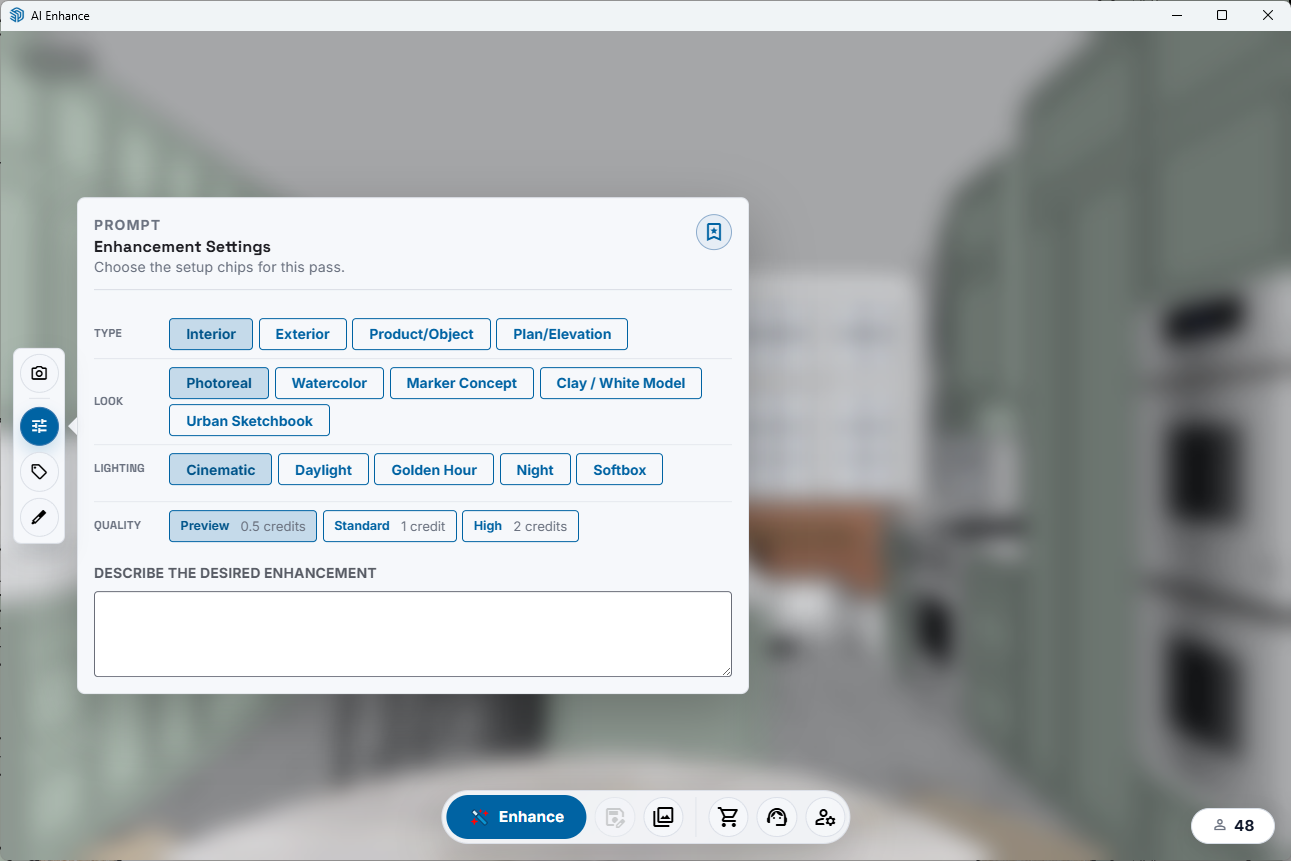
The setup system still matters. Enhancement Settings help users choose the source type, visual look, lighting direction, and quality level before spending credits.
Prompt Builder lets users show, hide, and create reusable chips for the prompt language they use repeatedly, including project-specific styles or studio-preferred direction.
- Type chips cover Interior, Exterior, Product/Object, and Plan/Elevation workflows.
- Look and lighting chips keep repeated render direction consistent.
- Custom reusable chips can capture project, studio, or client-specific language.
Rendering controls are clearer before credits are spent
The quality choices are also more explicit. Preview is for quick setup checks at 0.5 credits, Standard is the everyday option at 1 credit for most concept and presentation passes, and High is available at 2 credits when the image needs more polish for client-facing review.
The practical improvement is not just the label change. Credit costs are visible before the render starts, so users can choose the level of investment that matches the task.
What existing users should know before updating
AI Enhance 1.1 is installed through SketchUp Extension Manager using the signed RBZ from the download page. If AI Enhance was already installed, restart SketchUp after installing the update so SketchUp loads the new extension bridge cleanly.
After installation, sign in with the same AI Enhance account you already use. Your account, credits, gallery workflow, referral link, and group-account options remain part of the AI Enhance app experience rather than a separate marketplace-only install.
The extension stays light while the app can keep improving
AI Enhance 1.1 keeps the RBZ focused on the SketchUp-native bridge: viewport capture, extension callbacks, local gallery folder access, save/open/reveal/delete actions, and recovery behavior.
The live app can carry more of the product experience, including prompt catalog updates, onboarding copy, credit-pack display, referral messaging, and render policy. If the live app cannot load, users see a recovery screen with retry guidance instead of silently opening outdated pricing, account, or feature behavior.
Next steps
Where to go after this update
Use these links in order if you are updating from AI Enhance 1.0, checking the new workflow, or deciding how credits and team access fit your account.
- 1Download the signed 1.1 installerGet the current RBZ before installing it through SketchUp Extension Manager.
- 2Review the rendering workflowSee how capture, setup, render, compare, and save fit together in AI Enhance.
- 3Browse example resultsCompare SketchUp-to-render examples before trying the new setup controls.
- 4Check credit packs and quality levelsReview credit options before choosing Preview, Standard, or High output.
- 5Use referral creditsCopy your AI Enhance referral link and earn credits after qualifying purchases.
- 6Request shared-credit accessUse organization access when a studio, education program, or team needs shared credits.
- 7About the developerLearn more about Daniel Brown and the SketchUp workflow background behind AI Enhance.
Install path
How to install AI Enhance 1.1 manually
- 1Download the signed AI Enhance 1.1 RBZ from the download page.
- 2Open SketchUp and go to Window > Extension Manager.
- 3Choose Install Extension, select the RBZ file, and accept the SketchUp installation prompts.
- 4Restart SketchUp if AI Enhance was previously installed so the updated version is loaded.
Release questions
FAQ
Quick answers for installing AI Enhance 1.1, keeping credits connected to the same account, and understanding what changes after the update.
What changed in AI Enhance 1.1?+
AI Enhance 1.1 adds updated workflow controls, markup-based edit passes, gallery stacks and favorites, visible quality choices, referral credits, and a signed manual installer for SketchUp users.
Do I need to wait for the Extension Warehouse to use AI Enhance 1.1?+
No. Existing users can install the signed RBZ manually through SketchUp Extension Manager while the Extension Warehouse review queue continues.
Should I restart SketchUp after installing AI Enhance 1.1?+
Yes, restart SketchUp if you previously had AI Enhance installed. That helps SketchUp unload the older extension code and load the 1.1 version cleanly.
Will my existing AI Enhance credits still work after installing 1.1?+
Yes. Install the update and sign in with the same AI Enhance account. Your credits are tied to your account, not to a separate marketplace-only download.
What are Preview, Standard, and High renders?+
Preview is a lower-cost setup check at 0.5 credits, Standard is the everyday render option at 1 credit, and High is the more polished option at 2 credits for client-facing or final-review images.
Can a team share AI Enhance credits?+
Yes. Group accounts are available for studios, labs, classrooms, and other teams that need shared credits across multiple users.
Does AI Enhance 1.1 make the SketchUp extension heavier?+
No. The RBZ stays focused on the SketchUp bridge, capture flow, callbacks, local gallery access, and recovery behavior. Product copy, prompt catalog updates, account messaging, and render policy can continue improving through the AI Enhance app.

Written by Daniel Brown
Developer of AI Enhance
SketchUp extension developer, trainer, and visualization workflow educator focused on practical, repeatable project delivery.
Related content
More SketchUp AI workflow guides coming next
As the AI Enhance resource library grows, this section will point readers to related evergreen guides. These are the next planned workflow topics for the guide library.
Planned guide
AI rendering prompts for SketchUp interiors
A practical prompt guide for rooms, lighting direction, materials, and client-review images.
Planned guide
How to compare AI render versions during design review
A workflow guide for using before/after views, versions, favorites, and markup notes.
Planned guide
Choosing Preview, Standard, and High render quality
A credit-aware guide for choosing the right output quality before each render pass.
Newsletter opt-in
Get SketchUp AI workflow updates
Join the AI Enhance update list for release notes, practical SketchUp AI rendering guides, and recommended workflow content. Newsletter signup is a marketing opt-in, separate from required account, download, and billing notices.
Today, you can join updates through the download page by keeping product updates checked. A dedicated newsletter signup form is planned as the guide library grows.
Get the update
Download the signed AI Enhance 1.1 installer, then install it through SketchUp Extension Manager to update your current extension.